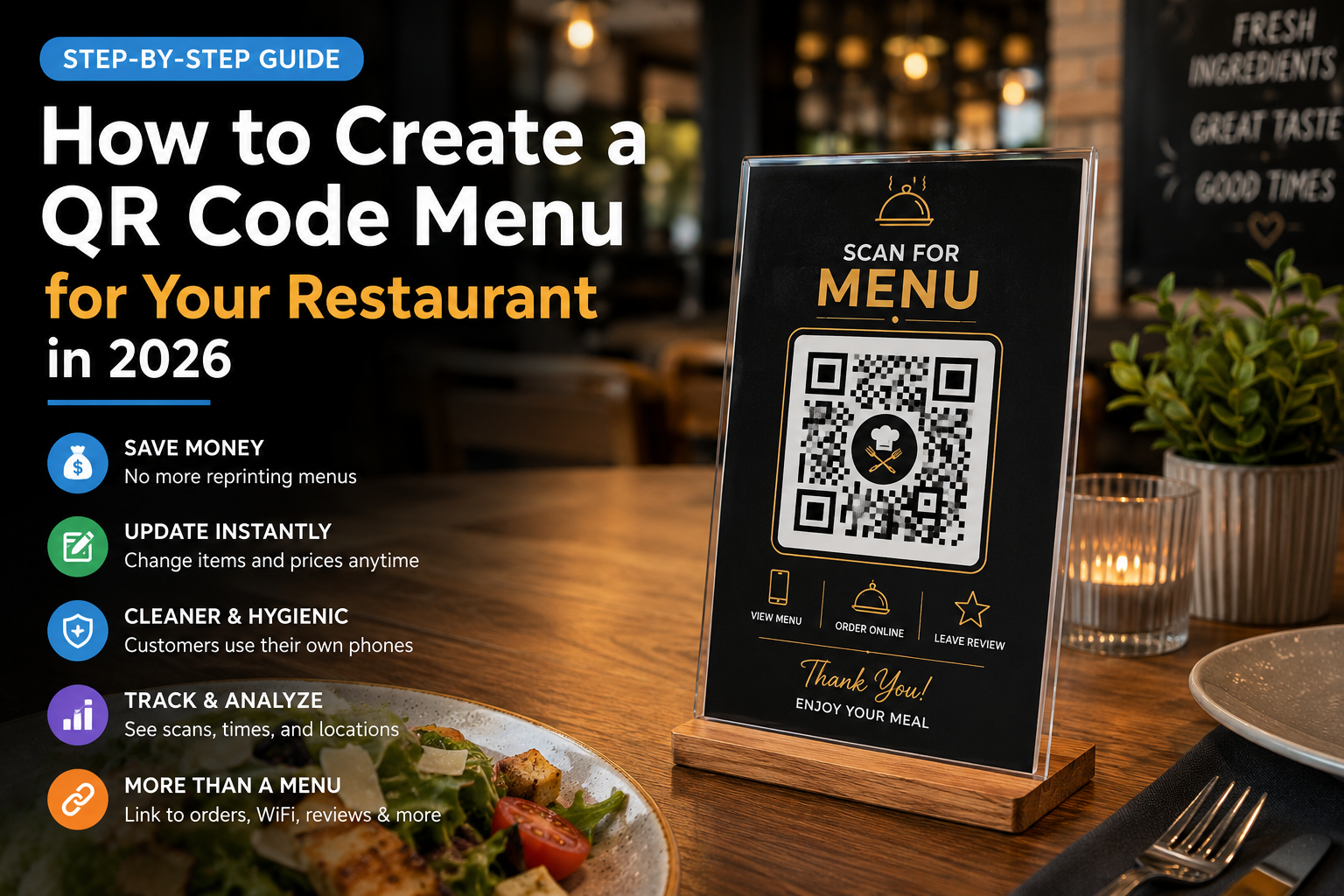
How to Create a QR Code Menu for Your Restaurant in 2026 (Step-by-Step Guide)
Created on 14 June, 2026 • qr code • 108 views • 7 minutes read
A simple step-by-step guide to creating a QR code menu for your restaurant in 2026 — free tools, dynamic QR codes, design tips, and common mistakes to avoid
If you walk into almost any restaurant today, there's a good chance you'll see a small printed code sitting on the table instead of a paper menu. That little square is a QR code menu, and in 2026, it has become one of the easiest and cheapest ways for restaurants to share their menu with customers.
Whether you run a small coffee shop, a food truck, or a full-service restaurant, creating a QR code menu takes less than 10 minutes and costs nothing if you use the right tools. In this guide, we'll walk you through exactly how to create one, step by step, and share a few tips to make sure it works smoothly for your customers.
Why Use a QR Code Menu in Your Restaurant?
Before jumping into the steps, it's worth understanding why so many restaurants have switched to QR code menus.
1. Save money on printing
Paper menus need to be reprinted every time you change a price, add a dish, or run out of an item. A QR code menu links to a digital menu that you can update anytime, without spending a cent on printing.
2. Update your menu instantly
Got a new seasonal dish? Sold out of today's special? With a digital menu, you can update it in seconds from your phone or computer, and every table will see the change immediately.
3. Cleaner and more hygienic
Shared paper menus pass through dozens of hands every day. A QR code menu means customers use their own phones, which feels cleaner and more modern to many guests.
4. Track how customers use your menu
Some QR code tools let you see how many people scanned your code, at what time, and from which location. This data can help you understand your busiest hours and which tables get used the most.
5. Add more than just a menu
A QR code can link to more than a PDF menu. You can connect it to your online ordering page, a feedback form, your Instagram page, or even your WiFi login — all from the same small code.
What You Need Before Creating a QR Code Menu
You only need two things:
- A digital version of your menu — this can be a PDF file, a Google Doc, a simple webpage, or even a page on your restaurant's website.
- A QR code generator — a tool that turns a link into a scannable QR code.
That's it. No app downloads, no developer needed, and no monthly fees if you choose a free tool.
Step-by-Step: How to Create a QR Code Menu
Step 1: Prepare Your Digital Menu
Start by creating a digital version of your menu. The simplest option is a PDF, since it keeps your formatting exactly as designed. You can create one using Canva, Google Docs, or even Microsoft Word, then export it as a PDF.
If you want something more flexible, build a simple webpage for your menu instead. A webpage is easier to update than a PDF and looks better on mobile screens, since customers can scroll instead of zooming in and out.
Upload your PDF to Google Drive (with "anyone with the link can view" turned on) or host your webpage somewhere accessible. Either way, you'll end up with a link — and that link is what your QR code will point to.
Step 2: Choose a QR Code Generator
Next, pick a tool to turn your menu link into a QR code. Free tools like Toolxa let you generate a QR code in seconds, with no account required.
When choosing a tool, look for one that offers:
- Free QR code generation with no watermark
- The option to add your logo or brand colors
- Both static and dynamic QR code types (more on this below)
Step 3: Generate and Customize Your QR Code
Paste your menu link into the QR code generator and create the code. Most tools let you customize the design — you can add your restaurant's logo in the center, change the colors to match your branding, and pick a frame that says "Scan for Menu."
A well-designed QR code isn't just decoration. Customers are more likely to scan a code that looks intentional and trustworthy, rather than a plain black-and-white square that looks like spam.
Step 4: Test the QR Code Before Printing
This step is easy to skip, but don't. Before printing anything, scan the code yourself with two or three different phones (both iPhone and Android) to make sure:
- It opens the correct menu
- The menu loads quickly
- The text is readable on a small screen
It's also worth asking a friend or staff member to test it from across the room — QR codes need a minimum size to scan properly from a normal seating distance.
Step 5: Print and Place Your QR Code
Once you've confirmed everything works, print the QR code and place it where customers will easily see it:
- Table tents or table stickers
- The front entrance or host stand
- Window decals for takeout customers
- Receipts, for repeat customers
A good size for table QR codes is about 3 x 3 cm (1.2 x 1.2 inches) at minimum, though larger is always safer, especially for codes placed farther from the table.
Static vs. Dynamic QR Codes: Which Should You Choose?
This is one of the most important decisions when creating a QR code menu.
Static QR codes have the destination link permanently built into the code. If you ever need to change your menu's URL, you'll need to create and reprint a brand-new code.
Dynamic QR codes let you change the destination link at any time, without changing the QR code image itself. This means if you move your menu to a new website, switch ordering platforms, or rebrand, your printed QR codes still work — you just update the link behind the scenes.
For restaurants, dynamic QR codes are almost always the better choice. Menus change often, and reprinting table tents every time you switch platforms gets expensive and time-consuming. A dynamic QR code, like the ones generated by Toolxa, also gives you scan statistics, so you can see how many people are actually using your menu and when.
Design Tips for Restaurant QR Code Menus
A few small details can make a big difference in how many guests actually scan your code:
- Add a clear call to action, like "Scan for our Menu" or "Scan Here to Order." Many customers won't scan a code unless they know what it leads to.
- Match your branding. A QR code in your restaurant's colors with your logo feels more trustworthy than a generic black-and-white code.
- Keep contrast high. Light-colored codes on light backgrounds (or dark on dark) are harder for phone cameras to read. Stick to high-contrast combinations.
- Avoid placing codes on glossy or curved surfaces, since reflections and bending can make scanning difficult.
Common Mistakes to Avoid
Even simple QR code menus can go wrong if you skip a few details:
- Forgetting to test on real phones before printing dozens of table tents.
- Linking to a huge, unoptimized PDF that takes forever to load on restaurant WiFi.
- Making the code too small to scan from a normal sitting position.
- Using a static code when your menu is likely to change soon.
- Not offering a backup, like a small printed menu for guests who don't have a smartphone or prefer not to use one.
Frequently Asked Questions
Is a QR code menu free to create?
Yes. Tools like Toolxa let you create both static and dynamic QR codes for free, with no need to download an app or create an account for basic use.
Do I need a special app to scan a QR code menu?
No. Both iPhone and Android phones can scan QR codes directly using the built-in camera app — no extra download needed.
Can I update my menu after printing the QR code?
Yes, if you use a dynamic QR code. You can update the linked menu, or even change the destination link entirely, without reprinting anything.
What's the best format for a digital restaurant menu?
A simple, mobile-friendly webpage usually works better than a PDF, since it loads faster and is easier to read on a phone screen. A PDF is fine if your menu doesn't change often.
How big should a QR code be on a table tent?
At least 3 x 3 cm (1.2 x 1.2 inches), though slightly larger is safer, especially if guests will be scanning from a normal arm's length away.
Final Thoughts
Creating a QR code menu for your restaurant in 2026 is simple, fast, and free. All you need is a digital version of your menu and a reliable QR code generator. By choosing a dynamic QR code, customizing the design to match your brand, and testing it before printing, you'll give your customers a smooth, modern experience — while saving money on printing and giving yourself the flexibility to update your menu anytime.