How to Create a QR Code for WhatsApp (Direct Chat Link)
Created on 24 June, 2026 • qr code • 200 views • 7 minutes read
Learn how to create a QR code for WhatsApp in minutes. Step-by-step guide with wa.me link format, pre-filled messages, common mistakes, and best practices.
Sharing your WhatsApp number used to mean spelling it out digit by digit, hoping people typed it correctly. A WhatsApp QR code removes that friction entirely — one scan and the chat opens automatically, no saving contacts required. Whether you're a business owner, freelancer, or content creator, a QR code that links directly to your WhatsApp is one of the fastest ways to get people talking to you.
In this guide, you'll learn what a WhatsApp QR code is, why it works better than sharing a phone number, how to create one in minutes, and how to use it across print and digital channels without common mistakes.
What Is a QR Code for WhatsApp?
A QR code for WhatsApp is a scannable image that opens a direct WhatsApp chat with your number the moment someone scans it — without them needing to save your contact first. When scanned, the code sends the user to a WhatsApp link in the format https://wa.me/[yournumber], which WhatsApp recognizes and opens instantly in the app.
You can also add a pre-filled message to the link, so the chat opens with a message already typed and ready to send — useful for businesses that want to guide the first interaction ("Hi, I'd like to know more about your services").
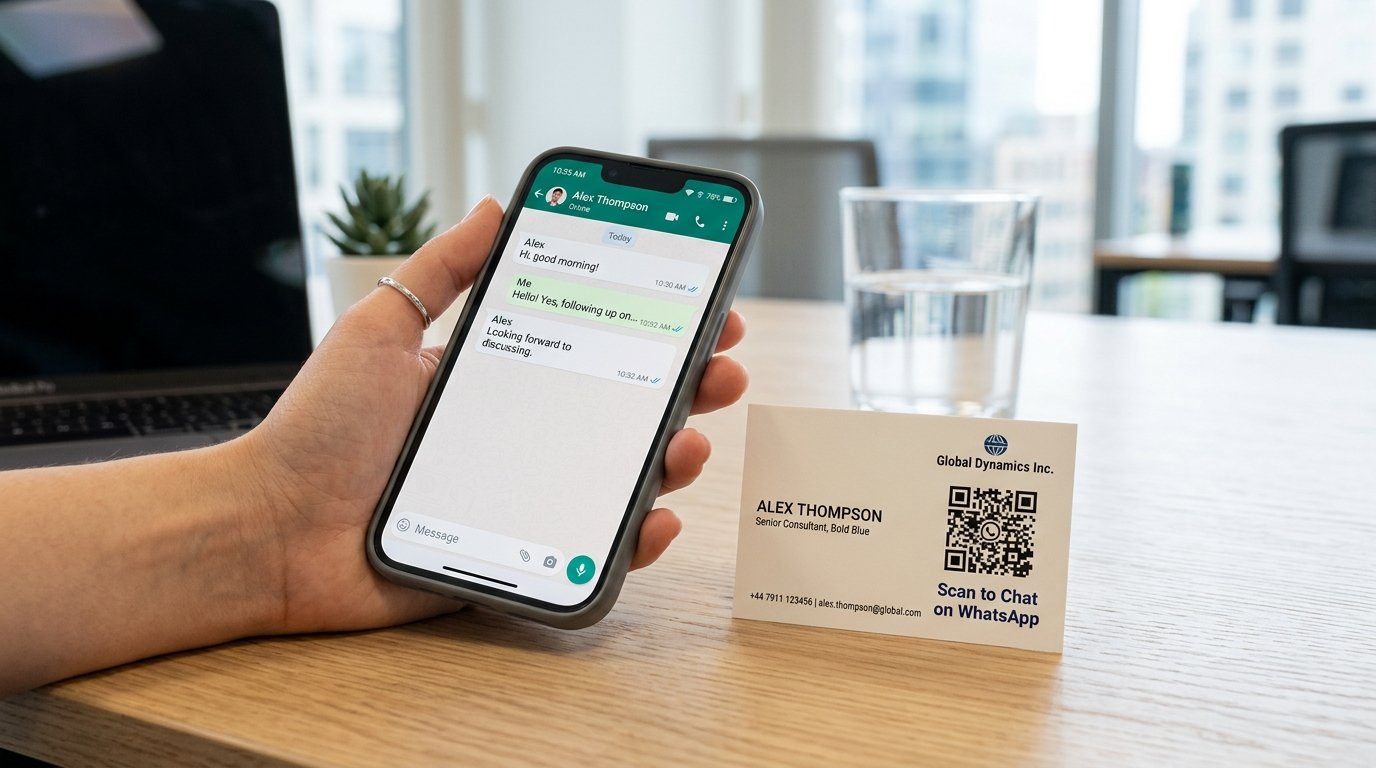
Image suggestion: a smartphone scanning a WhatsApp QR code on a business flyer, with the WhatsApp chat screen visible on the phone — alt text: "whatsapp qr code direct chat link"
Benefits of Using a QR Code for WhatsApp
A WhatsApp QR code is more than a shortcut — it removes every barrier between a potential customer and a conversation with you.
- No contact saving needed. The person scanning doesn't need to add your number to their contacts first. The chat opens directly, which dramatically reduces the steps between interest and action.
- Works in print and digital. Place the code on a business card, flyer, product packaging, storefront sign, email signature, or social media profile — it works everywhere.
- Pre-filled messages save time. You can set a default opening message so customers start the conversation with context, making it easier for your team to respond quickly and professionally.
- Measurable with dynamic codes. Using a dynamic QR code lets you track how many people scanned, when, and from which location — so you can measure which materials are driving the most WhatsApp conversations.
- Instant trust signal. A QR code that opens WhatsApp directly signals to customers that you're accessible, responsive, and easy to reach — all qualities that build trust before the first message is even sent.
How to Create a QR Code for WhatsApp
Creating a WhatsApp QR code takes under five minutes once you have your phone number ready.
Step 1: Build Your WhatsApp Link
The foundation of a WhatsApp QR code is the wa.me link. The format is:
[object HTMLPreElement]For example, a number in Morocco (+212) with the number 0612345678 would be written as:
[object HTMLPreElement]Important: remove the leading zero from the local number when combining with the country code. So 0612345678 becomes 212612345678, not 2120612345678.
To add a pre-filled message, append it to the link like this:
[object HTMLPreElement]Spaces and special characters in the message must be URL-encoded — most QR generators handle this automatically if you paste the plain text version of the message into a dedicated field.
Step 2: Generate the QR Code
Go to Toolxa's QR Code Generator, select the URL QR code type, paste your wa.me link, and generate the code. Download it as a high-resolution PNG or SVG file suitable for both digital use and print.
If you'd like to be able to update the WhatsApp number or pre-filled message later without reprinting any materials, choose a Dynamic QR code at this step. For a full breakdown of when to choose static vs dynamic, see our guide on Static vs Dynamic QR Codes.
Toolxa also lets you customize the code with your brand colors or add your logo in the center — a good idea for business materials where brand consistency matters. For logo placement guidelines and size recommendations, see our QR Code Size Guide.
Step 3: Test and Deploy
Before printing or publishing the code, scan it yourself on both an iPhone and an Android device and confirm that:
- The WhatsApp app opens directly (not the browser)
- The correct number appears in the chat window
- The pre-filled message (if you added one) appears correctly
Once confirmed, deploy the code across your chosen channels — business cards, flyers, storefront signs, email footers, Instagram bio links, or your website's contact section. For more on combining QR codes with business cards specifically, see our guide on QR Codes for Business Cards.
Common Mistakes to Avoid
- Including the leading zero in the phone number. The wa.me format requires the country code followed immediately by the local number without the leading zero. wa.me/2120612345678 will not work — the correct format is wa.me/212612345678.
- Using the wrong country code. Double-check the international dialing code for your country. Morocco is +212, Saudi Arabia is +966, UAE is +971, Egypt is +20 — confirm yours before generating the code.
- Not testing on both iOS and Android. WhatsApp behaves slightly differently across platforms. Always scan the code on both to confirm it opens correctly.
- Linking to WhatsApp Web instead of the app. Using web.whatsapp.com links instead of wa.me links may open the browser version rather than the app, especially on mobile.
- Printing the code too small. A WhatsApp QR code smaller than 0.8 × 0.8 inches (2 × 2 cm) can be difficult to scan reliably, especially in low light or on matte surfaces.
- No label on the code. Always add a short prompt like "Scan to chat on WhatsApp" so people know what to expect when they scan.
Best Practices
- Add a pre-filled message for business use. A message like "Hi, I found you on Instagram and I'd like to know more" gives your team instant context and makes customers feel guided rather than left to start from scratch.
- Use a dynamic QR code for print materials. If your WhatsApp number ever changes or you want to update the pre-filled message, a dynamic code lets you do that without reprinting anything.
- Place the code where conversations are most likely to start. Storefront entrances, product packaging, receipts, and the end of a service encounter are natural moments when customers want to reach out.
- Pair it with your WhatsApp Business profile. If you're using this for business, set up a WhatsApp Business account with a complete profile, auto-reply, and away messages before directing traffic to it — so every scan leads to a professional first impression.
- Match the code design to your brand. Adding your logo and brand colors to the QR code makes it feel intentional rather than generic, and increases the likelihood that people will scan it.
- Track performance with a dynamic code. If you're placing codes in multiple locations (storefront, flyer, business card), use a separate dynamic code for each location so you can see which placement drives the most chats.
FAQs
Is a WhatsApp QR code free to create?
Yes. You can create a WhatsApp QR code for free using Toolxa's QR code generator with no sign-up required. Dynamic codes with analytics and editing features may require a paid plan.
Does the person scanning need to have my number saved?
No. That's the main advantage of the wa.me link. The chat opens directly without the person needing to save your number first.
Can I add a pre-filled message to my WhatsApp QR code?
Yes. By adding a ?text= parameter to your wa.me link before generating the code, the chat will open with a message already typed and ready to send. The customer can edit or delete it before sending.
Does a WhatsApp QR code work internationally?
Yes, as long as you include the full international format (country code + number without leading zero). Anyone with WhatsApp installed can scan it and open a chat, regardless of their country.
What happens if someone scans the code without WhatsApp installed?
If WhatsApp is not installed on the scanning device, the link will typically open in the browser and prompt the user to download the app or use WhatsApp Web.
Can I use the same QR code for WhatsApp Business and personal WhatsApp?
The QR code simply opens a chat with the linked phone number. If that number is registered on WhatsApp Business, the Business profile will appear in the chat. If it's a personal account, the personal profile appears. The code itself doesn't distinguish between the two.
Final Thoughts
A WhatsApp QR code is one of the most practical tools for anyone who uses WhatsApp to communicate with customers, clients, or an audience. It removes every step between someone seeing your code and starting a conversation — no number typing, no contact saving, no searching. Just scan and chat.
Used on the right materials and in the right places, it turns passive touchpoints — a business card, a flyer, a sign — into live conversation starters.
Ready to create yours? Use Toolxa's free QR code generator to build a custom WhatsApp QR code in seconds — no sign-up required.