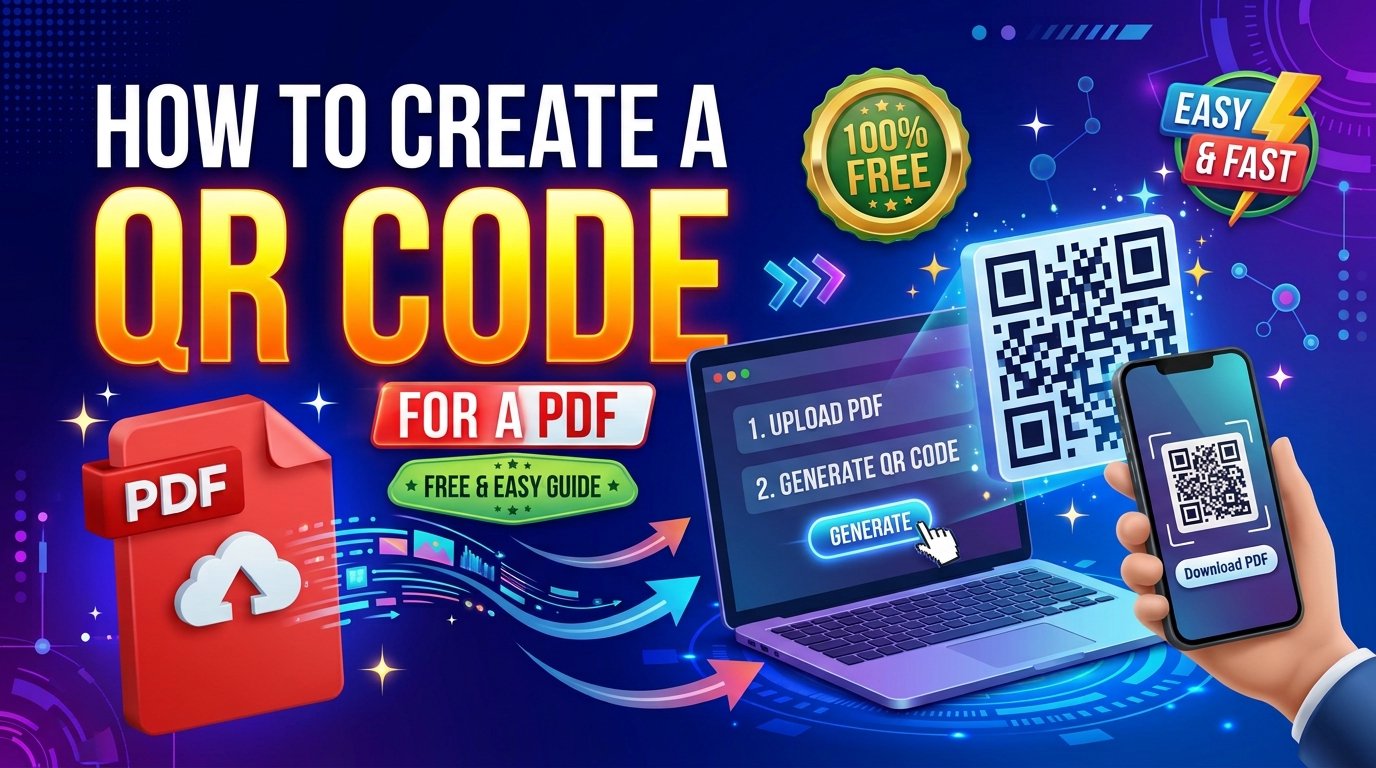
How to Create a QR Code for a PDF (Free & Easy Guide)
Created on 28 November, 2026 • qr code • 0 views • 11 minutes read
Learn how to create a QR code for a PDF in simple steps. Upload your PDF, generate a QR code, share your document, and discover free and dynamic QR code options.
Have you ever wanted to share a PDF document without sending a long link or asking people to download it manually? A QR code for PDF files offers a simple and convenient solution.
With a PDF QR code, anyone can scan a small square code using their smartphone and access your document within seconds. Whether you want to share a restaurant menu, product catalog, user manual, brochure, or educational material, QR codes make document sharing faster and easier.
In this guide, you will learn how to create a QR code for a PDF, how to share your document online, and how to make sure your QR code works correctly on different devices.
What Is a QR Code for a PDF?
A QR code for a PDF is a scannable code that directs users to a PDF document through a web link.
Instead of typing a long URL into a browser, users can scan the QR code with their smartphone camera and open the document directly.
PDF QR codes are commonly used for:
- Restaurant menus and price lists
- Product catalogs and brochures
- Educational documents and study materials
- Business reports and presentations
- User manuals and installation guides
- Event programs and digital flyers
- Company profiles and marketing materials
The main advantage of using a QR code is convenience. You can place it on printed materials, websites, packaging, or digital advertisements to give people quick access to your PDF.
How to Create a QR Code for a PDF
Creating a QR code for a PDF is easier than you might think. You do not need advanced technical skills or special software.
Follow these simple steps to create your own PDF QR code.
Step 1: Prepare Your PDF File
Before creating your QR code, make sure your document is ready to share.
If you already have a PDF file, check that it opens correctly and contains all the information you want to share.
If your document is currently in Word, Excel, or another format, export or save it as a PDF.
For the best user experience, consider the following tips:
- Use a clear and descriptive file name.
- Make sure the text is readable on mobile devices.
- Remove unnecessary pages or large images.
- Check that all links inside the PDF work properly.
A well-organized PDF helps users find the information they need after scanning your code.
Step 2: Upload Your PDF to the Internet
A QR code needs a web address to direct users to your document.
Therefore, you must upload your PDF to an online location before generating the QR code.
You can use several options:
Google Drive
Google Drive is a popular option for sharing PDF documents online. Upload your file, open the sharing settings, and create a link that allows the intended audience to view the document.
Your Website
If you have a website, you can upload your PDF to your website's media library or file hosting area. This gives you more control over the document and its URL.
Dropbox or Another Cloud Storage Service
Cloud storage platforms can also provide shareable links to PDF files. Make sure the link allows the people who scan your QR code to access the document.
For public documents, test the link without being signed in to your account. This helps ensure that visitors will not see an access request.
Step 3: Copy the PDF Link
After uploading your PDF, copy its shareable URL.
This link is the destination that your QR code will open.
For example, your PDF link might look like this:
https://toolxa.com/qr-code-create
The actual link will depend on where your PDF is hosted.
Before moving to the next step, open the link in a new browser tab and confirm that the document loads correctly.
Step 4: Generate Your QR Code for PDF
Now that your PDF has an accessible link, you can create your QR code.
Use a QR code generator that supports URL-based QR codes.
The process usually involves the following steps:
- Open a QR code generator.
- Select the URL or website option.
- Paste your PDF link into the input field.
- Generate the QR code.
- Customize the design if needed.
- Download the QR code image.
Your QR code is now ready to share.
You can save it as a PNG image for digital use or choose a high-quality vector format such as SVG when available for printing.
Step 5: Test Your PDF QR Code
Testing your QR code is an important step before publishing or printing it.
Use your smartphone camera to scan the code and check whether it opens the correct PDF.
Make sure that:
- The QR code scans quickly.
- The PDF opens without an unexpected login requirement.
- The document displays correctly on mobile.
- The link does not lead to an error page.
- The QR code is not blurry or distorted.
If everything works correctly, your QR code is ready to use.
How to Create a QR Code for a PDF Using Google Drive
Google Drive is one of the easiest ways to host a PDF before creating a QR code.
Here is how to do it:
- Open Google Drive.
- Upload your PDF document.
- Find the uploaded file and click Share.
- Under General access, change the access setting if you want anyone with the link to view the document.
- Select the Viewer permission.
- Click Copy link.
- Paste the copied link into a QR code generator.
- Generate and download your QR code.
Your PDF QR code will now direct users to the document stored in Google Drive.
Important: If your PDF is set to Restricted, people who scan the QR code may be asked to request access or sign in. Always check the sharing permissions before distributing your code.
Static vs. Dynamic QR Code for PDF
When creating a QR code for a PDF, you may encounter two common types: static and dynamic QR codes.
Understanding the difference can help you choose the right option for your project.
Static QR Code
A static QR code stores the PDF's URL directly inside the code.
Once created, the destination cannot be changed without generating a new QR code.
Static QR codes are suitable for documents that will remain available at the same address for a long time.
Advantages:
- Simple to create
- Often available for free
- Does not require a redirect service
- Suitable for permanent document links
Disadvantages:
- The destination cannot be edited
- Changing the PDF URL may require a new QR code
- A broken or deleted link can make the code unusable
Dynamic QR Code
A dynamic QR code uses an editable redirect link.
Instead of pointing directly to the PDF, the QR code points to a link that redirects users to your document.
You can change the destination later without changing the printed QR code, provided the dynamic QR service remains active.
Advantages:
- Update the PDF destination without reprinting
- Track scans when analytics are supported
- Manage multiple document links
- Useful for marketing and business campaigns
Disadvantages:
- Some services require a subscription
- The redirect may depend on the provider
- Free plans may have limitations
If you plan to update your PDF regularly, a dynamic QR code can be a practical choice.
Can You Create a QR Code for a PDF for Free?
Yes, you can create a QR code for a PDF for free.
Many QR code generators allow users to create static QR codes from website links without paying.
The process is straightforward:
- Upload your PDF to a free cloud storage service or your website.
- Copy the document's shareable URL.
- Paste the URL into a free QR code generator.
- Generate the code.
- Download and test it.
Keep in mind that free QR code generators may offer different features. Some provide static QR codes without registration, while others offer dynamic QR codes, customization, or scan analytics through paid plans.
Always check whether your QR code depends on a third-party service before using it on printed materials.
Best Practices for Creating a QR Code for a PDF
Creating a QR code is only the first step. To make sure people can scan and use it easily, follow these best practices.
Use a High-Quality QR Code Image
Avoid downloading a blurry or low-resolution QR code.
For printed materials, choose a high-resolution image or a vector format such as SVG when available.
This helps preserve the sharp edges of the QR code and improves scanning reliability.
Choose the Right Size
The size of your QR code depends on where you plan to place it.
A small code may work on a business card when scanned from close range, but a poster or banner needs a larger code.
Always test the code at its actual printed size before producing large quantities.
Use Strong Contrast
A dark QR code on a light background is usually the safest design choice.
Avoid using colors that blend together or placing the QR code on a complicated background.
Make sure there is enough clear space around the code so smartphone cameras can recognize it easily.
Keep Your PDF Accessible
If your PDF is intended for public use, make sure the link can be opened by the people who scan it.
A QR code cannot bypass file permissions. If the document is private, keep it protected and share it only with authorized users.
Add a Call to Action
People may not know what your QR code contains.
Add a short message next to it, such as:
- Scan to View the PDF
- Scan to Download the Guide
- Scan for the Product Catalog
- Scan to Read the Menu
A clear call to action encourages users to scan the code.
Common Problems with PDF QR Codes and How to Fix Them
Sometimes a QR code does not work as expected. Here are some common issues and their solutions.
The QR Code Does Not Scan
This may happen because the image is blurry, too small, or poorly printed.
Solution: Download a high-quality version, increase the size, and use a dark code on a light background.
The PDF Asks Users to Sign In
This usually means the document is not publicly accessible.
Solution: Review the file's sharing permissions and allow the intended audience to access it.
The QR Code Opens the Wrong Document
The QR code may contain an incorrect URL or point to an outdated file.
Solution: Test the original link and generate a new QR code if necessary.
The PDF Link No Longer Works
The file may have been deleted, moved, or renamed.
Solution: Restore the document or update the destination. If you use a dynamic QR code, edit the destination link instead of printing a new code.
The PDF Is Difficult to Read on a Phone
Some PDF documents are designed for large screens or printed pages.
Solution: Use larger text, a mobile-friendly layout, and a clear document structure.
Where Can You Use a QR Code for a PDF?
PDF QR codes can be used in many personal, educational, and business situations.
Restaurants and Cafés
Restaurants can place QR codes on tables to let customers access digital menus without handling printed menus.
Schools and Universities
Teachers can share lesson materials, assignments, reading lists, and study guides through QR codes.
Businesses and Offices
Companies can use PDF QR codes to distribute brochures, company profiles, product catalogs, and reports.
Retail and Product Packaging
Manufacturers can place QR codes on product packaging to provide manuals, warranty information, and instructions.
Events and Conferences
Event organizers can use QR codes to share schedules, maps, speaker information, and digital programs.
By placing a QR code in a convenient location, you can make important documents easier to access.
Frequently Asked Questions About QR Code for PDF
How do I create a QR code for a PDF?
Upload your PDF to an online hosting service, copy its shareable link, and paste the link into a QR code generator. Generate the code, download it, and test it with your smartphone.
Can I convert a PDF directly into a QR code?
A QR code generally cannot contain an entire PDF file because documents are much larger than the data capacity of a QR code. Instead, the QR code stores a link to the PDF hosted online.
How do I create a QR code for a PDF without uploading it?
If you do not want to upload your PDF to a third-party QR code service, you can host it on your own website or an approved storage platform and generate a QR code from its URL.
If the document must remain completely offline and private, a standard URL-based QR code will not provide remote access to it.
Can I create a QR code for a PDF on my phone?
Yes. You can upload your PDF to a cloud storage service using your smartphone, copy the shareable link, and use a mobile-friendly QR code generator.
Does a QR code for a PDF expire?
A static QR code does not normally expire by itself. However, it may stop working if the PDF link is deleted, changed, or made inaccessible.
Dynamic QR codes may depend on the service provider and its subscription terms.
Can I change the PDF after creating the QR code?
Yes, if you keep the same PDF URL or use a dynamic QR code.
For example, you can replace a file with a new version while keeping its original link, if your hosting service supports this feature.
Is a QR code for a PDF safe?
A QR code is simply a way to encode information, usually a URL. Its safety depends on the destination.
Only scan codes from trusted sources, check the destination address when possible, and avoid opening suspicious links.
Conclusion
Creating a QR code for a PDF is a simple way to share documents quickly and conveniently.
By uploading your PDF, copying its link, and generating a QR code, you can give people instant access to menus, brochures, manuals, reports, and many other documents.
For permanent documents, a static QR code may be sufficient. If you expect to update your PDF regularly, consider using a dynamic QR code or keeping the document at a stable URL.
The most important step is to test your QR code before sharing it. A clear design, accessible PDF, and working link will help ensure a smooth experience for everyone who scans it.