How to Create a QR Code for Business Cards in 2026
Created on 18 June, 2026 • qr code • 149 views • 7 minutes read
Learn how to create a QR code for business cards in minutes. Step-by-step guide, best practices, size tips, and FAQs for professionals and freelancers.
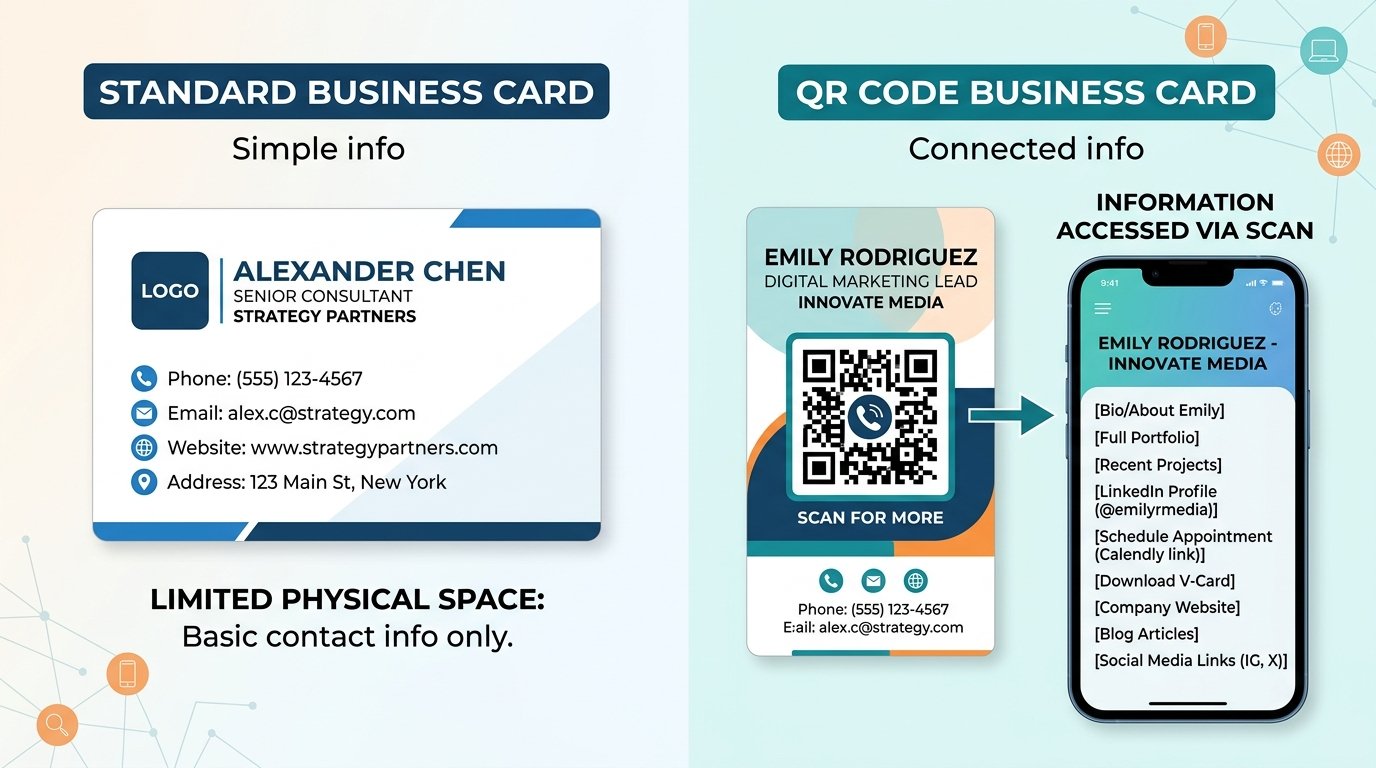
A business card only has so much space — name, title, phone, email, website, and maybe a social handle already fills most of it. A QR code changes that equation entirely. One small scannable square can link to your full contact details, portfolio, LinkedIn profile, booking page, or anywhere else you want people to land, without crowding the card.
In this guide, you'll learn what a QR code for a business card is, what to link it to, how to create one in a few simple steps, and how to avoid the mistakes that make QR codes on cards fall flat. Whether you're a freelancer, business owner, or sales professional, this guide will help you make the most of every card you hand out.
What Is a QR Code for Business Cards?
A QR code for a business card is a scannable image printed directly on the card that links to a destination of your choice — a contact file, personal website, portfolio, LinkedIn profile, or any other URL. When someone points their phone camera at it, they're taken there instantly without typing anything.
Unlike a plain URL printed on a card (which most people don't bother typing out manually), a QR code removes all friction. The recipient scans, lands on your page, and can save your details or explore your work in seconds.
The code itself is generated from a URL, vCard contact file, or other data you choose, converted into a square grid of black-and-white modules that any modern smartphone camera can read.
Image suggestion: a close-up of a business card on a desk with a QR code in the corner, a phone hovering above it ready to scan — alt text: "qr code for business cards"
Benefits of Using a QR Code on Business Cards
Adding a QR code to your business card turns a passive piece of paper into an interactive touchpoint.
- Share more than a card can hold. A QR code can link to your full portfolio, video intro, product catalog, or booking page — content that simply can't fit on a 3.5 × 2 inch card.
- Instantly save contact details. Linking to a vCard (virtual contact file) lets recipients save your name, number, email, company, and photo to their phone contacts with one tap, rather than typing everything by hand.
- Track engagement. With a dynamic QR code, you can see how many people scanned your card, when, and from where — useful feedback that a plain printed card can never give you.
- Easy to update. A dynamic QR code lets you change the destination link without reprinting your cards. If you get a new phone number or launch a new portfolio, update the link and all your existing cards stay current.
- Stand out from the stack. A well-designed card with a QR code signals that you're current, thoughtful, and easy to work with — small signals that matter in a first impression.
How to Create a QR Code for Business Cards
Creating a QR code for your business card takes just a few minutes once you've decided what it should link to.
Step 1: Decide What to Link To
Before generating the code, choose a single clear destination. Popular options include:
- vCard / digital contact file — lets people save your info directly to their phone
- LinkedIn profile — good for professionals and job seekers
- Personal website or portfolio — ideal for freelancers and creatives
- Booking or scheduling page — useful for consultants, coaches, or service providers
- Video intro — a short clip that introduces you and what you do
Keep it focused. A QR code that leads to a clean, well-designed landing page is more effective than one that dumps someone on a cluttered homepage.
Step 2: Generate the QR Code
Go to a free QR code generator such as Toolxa's QR Code Generator, enter your destination URL or upload your vCard file, and generate the code. Download it as a high-resolution PNG or SVG file — both are suitable for print. SVG is recommended if your designer needs a vector file that scales without losing quality.
If you'd like to update the link later without reprinting your cards, choose a Dynamic QR Code at this step. For a full breakdown of size recommendations for print, see our QR Code Size Guide.
Step 3: Add It to Your Business Card Design and Test
Place the QR code in a quiet area of the card — typically the back — at a minimum of 0.8 × 0.8 inches (2 × 2 cm) to ensure scannability. Make sure there's adequate white space (called the quiet zone) around the edges of the code, and that it sits on a high-contrast background.
Before sending your card to print, test the code from the actual print-ready file (PDF or high-res image) on at least one iPhone and one Android device. Confirm the destination loads correctly and looks good on mobile. Once confirmed, send to print.
Common Mistakes to Avoid
A QR code on a business card only works if people can scan it successfully and find value on the other side.
- Making the code too small. Anything below 0.8 × 0.8 inches can be difficult for cameras to read, especially on matte or textured card stock.
- Low contrast between code and background. A light gray code on a white card, or a dark code on a dark card, will fail to scan. Always use high contrast — typically black on white or very light background.
- No quiet zone. The white border around the QR code (the "quiet zone") is essential for scanners to detect the code boundaries. Removing it to save space causes scan failures.
- Linking to a desktop-only page. The person scanning is always on their phone, so the destination must be fully mobile-optimized.
- Using a static code for information that changes. If your website URL or phone number might change, use a dynamic QR code so you don't end up with outdated cards.
- No label on the code. A small line like "Scan to save my contact" helps recipients know what to expect and encourages them to actually use it.
Best Practices
To get the most from a QR code on your business card, a few thoughtful touches make all the difference.
- Use a dynamic QR code. It lets you update the destination anytime, track scan analytics, and keep cards useful even if your details change.
- Always label the QR code. Add a short prompt like "Scan to connect," "View my portfolio," or "Save my contact" directly below or beside the code.
- Match the code style to your brand. Many QR generators let you add your logo in the center of the code or use brand colors, giving the code a polished, intentional look rather than a generic grid.
- Put the code on the back. The front of the card should still carry your name, title, and primary contact details at a glance. The back is the natural home for a QR code.
- Test before you print. Print a single test card or a small batch first and scan it under different lighting conditions before ordering a large quantity.
- Keep the landing page simple. The QR destination should load fast, look great on mobile, and have one clear action — save contact, book a call, view work, etc.
FAQs
Is it free to create a QR code for a business card?
Yes. You can create a basic QR code for free using tools like Toolxa with no sign-up required. Dynamic QR codes with analytics and editing features may require a paid plan depending on the tool you use.
What size should a QR code be on a business card?
The minimum recommended size is 0.8 × 0.8 inches (about 2 × 2 cm). Larger is generally better for scan reliability — if your card design allows, 1 × 1 inch is a comfortable target.
Can I put a logo inside the QR code?
Yes. Many QR generators support embedding a logo in the center of the code. The code's built-in error correction handles a logo covering up to around 30% of the code without affecting scan accuracy.
What should my QR code link to?
The best destination depends on your goal. For networking, a vCard or LinkedIn profile works well. For freelancers and creatives, a portfolio page is ideal. For service providers, a booking page removes friction and can convert a handshake into a scheduled call.
Will the QR code still work if my card gets scratched or bent?
QR codes include built-in error correction, so they can still scan correctly even if a portion of the code is damaged. For maximum durability, use a heavier card stock and a matte or spot-UV finish that holds up to handling.
Do QR codes on business cards expire?
A static QR code does not expire on its own — it will keep pointing to the same URL indefinitely. A dynamic QR code stays active as long as your account with the generating service remains active.
Final Thoughts
A QR code turns a business card from a one-way handout into a gateway to everything you do. Whether it links to your contact details, portfolio, or scheduling page, it gives the person you just met a frictionless way to follow up — which is the whole point of handing out a card in the first place.
Ready to create yours? Use Toolxa's free QR code generator to build a custom QR code for your business card in seconds — no sign-up required.