How to Create a WiFi QR Code for Guests in 2026
Created on 14 June, 2026 • qr code • 102 views • 7 minutes read
Learn how to create a WiFi QR code for guests in minutes. Step-by-step guide, safety tips, common mistakes, and FAQs for hosts and businesses.
Giving guests fast, password-free access to your WiFi is a small detail that makes a big difference. Instead of spelling out a long, complicated password, you can hand them a code to scan with their phone camera and they're online in seconds.
In this guide, you'll learn what a WiFi QR code is, why hosts, hotels, cafés, and Airbnbs are switching to them, and how to create one yourself in under 10 minutes. We'll also cover whether they're safe, the most common mistakes people make, and answers to the questions guests and hosts ask most often.
What Is a WiFi QR Code?
A WiFi QR code is a small black-and-white pattern that stores your network's name (SSID), password, and security type in a single scannable image. When someone points their phone's camera at it, the device reads this information and pre-fills the WiFi connection screen automatically — no typing required.
This works because most QR code generators encode the data using a standard format that smartphones recognize natively. iPhones running iOS 11 or later and most Android phones with a built-in camera scanner can connect this way without installing any extra app. Once the code is scanned, the phone shows a one-tap "Join Network" prompt, and the guest is connected.
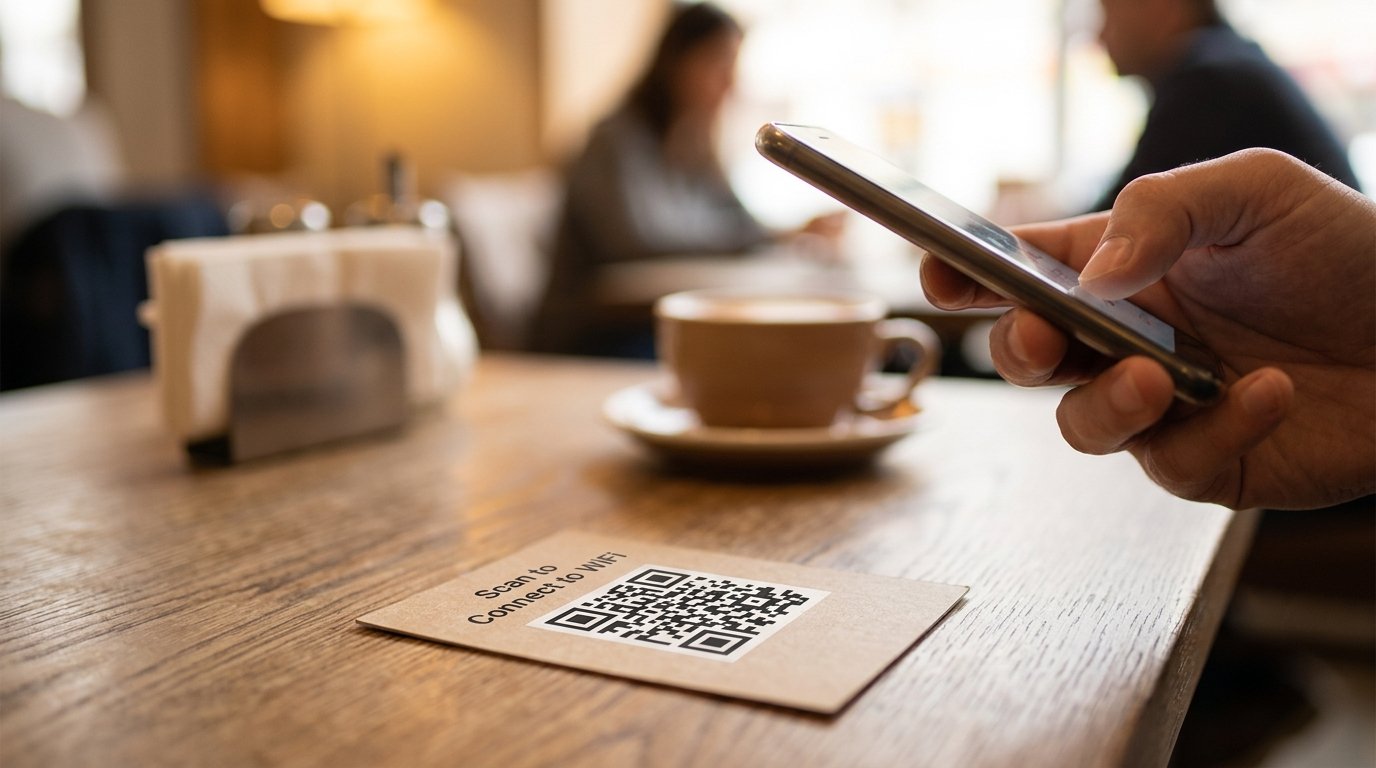
Image suggestion: a smartphone camera scanning a printed WiFi QR code on a café table — alt text: "wifi qr code for guests"
Benefits of Using a WiFi QR Code for Guests
A WiFi QR code isn't just a novelty — it solves real, everyday friction points for hosts and guests alike.
- No more typing long passwords. Complex passwords with mixed case letters, numbers, and symbols are hard to type correctly on a phone keyboard, especially for older guests or those unfamiliar with the layout.
- Fewer support requests. Hosts running short-term rentals, hotels, or cafés get fewer "what's the WiFi password?" messages, freeing up time for other things.
- A more professional impression. A printed card with a clean QR code and the words "Scan to connect to WiFi" feels more polished than a sticky note with a handwritten password.
- Accessible for everyone. Guests who don't speak the local language, have visual impairments, or simply don't want to fumble with a keyboard can connect with one tap.
- Reusable across formats. The same code can be printed on table tents, welcome booklets, room key cards, or framed and placed near the entrance.
How to Create a WiFi QR Code for Guests
Creating a WiFi QR code takes just three steps, and you don't need any technical skills or special software.
Step 1: Gather Your Network Information
Before generating the code, collect these three details from your router settings page or the label on the back of the router:
- Network name (SSID) — exactly as it appears, including capitalization
- WiFi password — double-check for similar-looking characters like 0 (zero) and O, or l (lowercase L) and 1
- Security type — most home and business routers use WPA or WPA2; some newer routers use WPA3
If you're setting this up for guests specifically, it's worth creating a separate guest network first (more on this in the Best Practices section).
Step 2: Generate the QR Code
Once you have your network details, use a free WiFi QR code generator such as Toolxa's WiFi QR Code Generator. Enter your SSID, password, and security type, then generate the code. The tool will produce a downloadable image you can save in high resolution.
If you'd like to learn the difference between codes that can be edited later versus ones that can't, see our guide on Dynamic vs Static QR Codes.
Step 3: Test and Display the QR Code
Before printing or sharing the code, scan it yourself with at least two different phones (one iPhone and one Android, if possible) to confirm it connects correctly. Once confirmed:
- Print it on a card, sign, or sticker
- Place it somewhere guests will naturally see it — near the entrance, on a welcome table, or inside a guest folder
- Consider laminating printed copies so they hold up to handling
For guidance on sizing the code correctly for different print materials, check out our QR Code Size Guide.
Is a WiFi QR Code Safe?
A WiFi QR code is generally just as safe as sharing your password verbally or in writing — the code simply encodes the same information you'd otherwise type out by hand. Scanning it doesn't expose your password to anyone other than the person doing the scanning, and the data isn't transmitted anywhere online during the scan itself.
That said, a few precautions are worth keeping in mind:
- Anyone who scans the code (or photographs it) gains the same access as someone who knows the password, so don't post it somewhere fully public if you'd rather limit access to verified guests.
- Setting up a dedicated guest network, separate from the network your own devices and smart-home equipment use, limits what a guest device can access on your network even if the code is shared more widely than intended.
- Using WPA2 or WPA3 encryption (rather than older, weaker standards) keeps the connection itself secure regardless of how the credentials were shared.
Common Mistakes to Avoid
Even a simple WiFi QR code can go wrong if a few details are overlooked.
- Selecting the wrong security type. If you choose WPA when your router actually uses WPA2/WPA3 (or vice versa), some phones will fail to connect even though the password is correct.
- Skipping the test step. Always scan the code yourself before printing dozens of copies — a single typo in the SSID or password makes the whole code useless.
- Forgetting to update the code after a password change. If you change your WiFi password but keep the old printed QR codes around, guests scanning them will get a "couldn't join network" error.
- Printing the code too small. A code smaller than about 2 x 2 inches (5 x 5 cm) can be difficult for some cameras to focus on, especially in low light.
- Low contrast or busy backgrounds. A QR code printed in light gray on a patterned background may not scan reliably — stick to high-contrast black-on-white or your brand's dark color on a light background.
Best Practices
To get the most out of your WiFi QR code, a few extra touches go a long way:
- Create a separate guest SSID. This keeps guest devices isolated from your main network and any connected smart-home devices.
- Label it clearly. Add a short line like "Scan to connect to WiFi" so guests immediately understand what the code does.
- Choose a durable format. Laminated cards, framed prints, or engraved signs hold up better than paper taped to a wall.
- Match your branding. Many QR generators let you add a logo or custom colors, which helps the code feel like part of your space rather than an afterthought.
- Regenerate when needed. If you ever update your WiFi password, generate a new code and swap out any printed copies right away.
FAQs
Is a WiFi QR code free to create?
Yes. Most QR code generators, including Toolxa, offer a free WiFi QR code option that requires no account or payment — you simply enter your network details and download the image.
Does scanning a WiFi QR code reveal my password to the guest?
The code itself contains the password in an encoded form, so anyone who scans it (or saves the image) technically has access to it, the same as if it were written down. If you'd rather guests not retain the password, consider a separate guest network with a password you don't mind sharing freely.
Can I edit a WiFi QR code after it's created?
A standard (static) WiFi QR code can't be edited — if your network details change, you'll need to generate a new code. Some tools offer dynamic QR codes that link to an editable page, which can be useful if you expect to update your network settings often.
Do WiFi QR codes work on all phones?
Most phones made in the last several years can scan and connect via the built-in camera app — this includes iPhones on iOS 11 and newer, and Android phones with a native QR scanner in the camera. Older devices may need a separate QR scanning app, which is widely available for free.
Do WiFi QR codes expire?
No, a WiFi QR code doesn't expire on its own. It will simply stop working if the network name, password, or security type it encodes no longer matches your router's actual settings.
Final Thoughts
A WiFi QR code is one of those small upgrades that guests notice immediately — it's faster, more convenient, and gives a more professional first impression than handing over a slip of paper with a password scribbled on it. Whether you're hosting a short-term rental, running a café, or just want a tidier way to share WiFi at home, setting one up takes only a few minutes.
Ready to create your own? Use Toolxa's free WiFi QR code generator to create a custom, downloadable WiFi QR code in seconds — no sign-up required.