How to Create a QR Code for Instagram
Created on 4 July, 2026 • qr code • 227 views • 7 minutes read
Learn how to create a QR code for Instagram in minutes. Step-by-step guide, best placement tips, common mistakes, and FAQs to grow your Instagram following.
Growing your Instagram following is harder when people have to search for your username manually. A QR code for Instagram removes that friction entirely — scan it and your profile opens instantly, ready to follow. Whether you're a business, creator, or brand, an Instagram QR code turns any printed material into a direct link to your audience.
In this guide, you'll learn what an Instagram QR code is, why it works better than sharing a handle, how to create one in minutes, and how to use it across print and digital channels to grow your following faster.
What Is a QR Code for Instagram?
A QR code for Instagram is a scannable image that opens your Instagram profile directly when someone points their smartphone camera at it. Instead of asking people to open Instagram, tap the search bar, and type your username correctly, the code takes them straight to your profile page in one scan.
Behind the scenes, the code encodes your Instagram profile URL in the format https://instagram.com/yourusername. When scanned, the phone's camera recognizes it as a link, opens Instagram (or the browser if Instagram isn't installed), and lands directly on your profile.
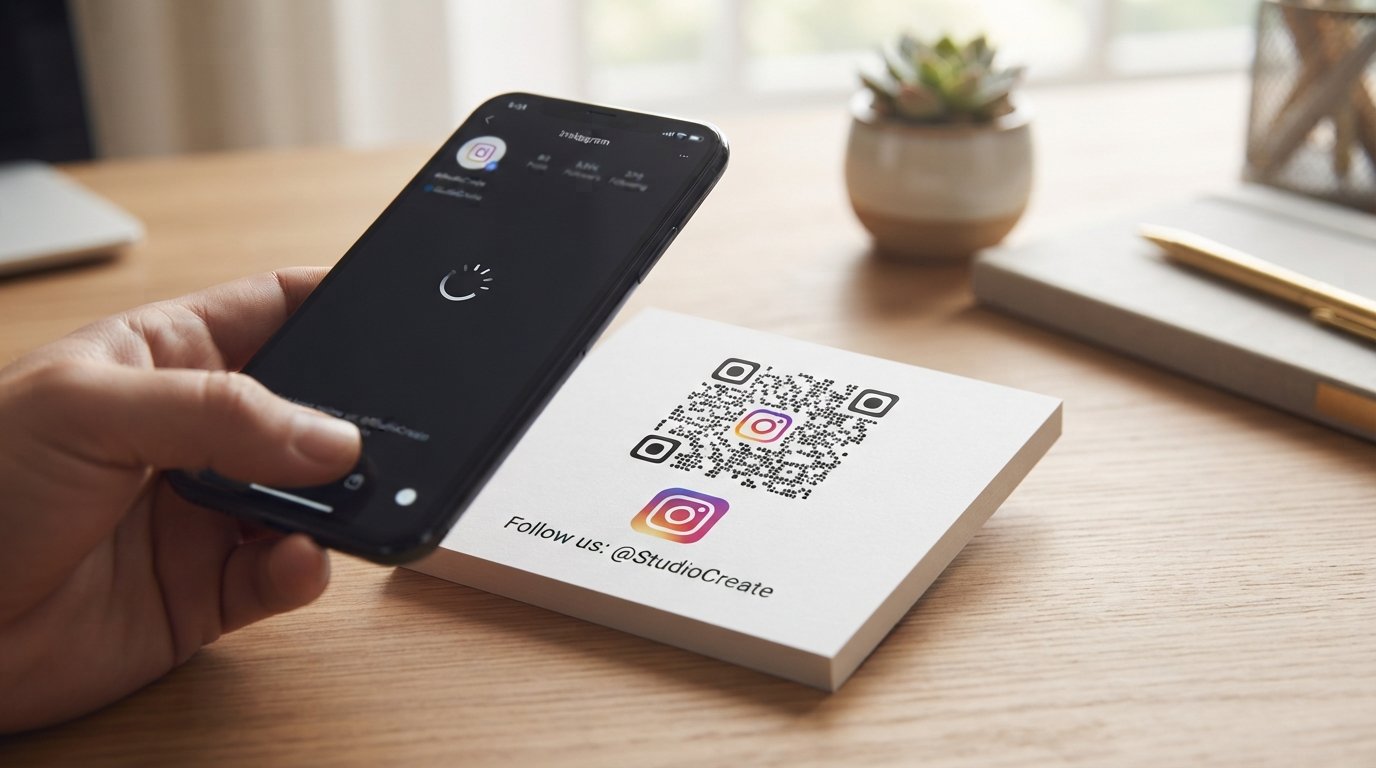
Image suggestion: a smartphone scanning a QR code on a business card, with an Instagram profile visible on the screen — alt text: "qr code for instagram profile"
Benefits of Using a QR Code for Instagram
An Instagram QR code is one of the simplest ways to convert offline attention into online followers.
- No username spelling errors. Long usernames, underscores, and numbers are easy to mistype. A QR code eliminates that entirely — one scan and they're on your profile.
- Works in print and digital. Add it to business cards, product packaging, flyers, restaurant menus, event signage, or email signatures — anywhere you want people to find you.
- Faster than typing a URL. Scanning takes one second. Typing a URL takes ten, and most people won't bother. The lower the friction, the more follows you get.
- Trackable with dynamic codes. A dynamic QR code lets you see how many people scanned, when, and from which location — so you know which materials are driving Instagram growth.
- Professional first impression. A QR code on a business card or packaging signals that you're active online and easy to connect with — especially important for brands and creators.
How to Create a QR Code for Instagram
Creating an Instagram QR code takes just a few minutes once you have your profile URL ready.
Step 1: Get Your Instagram Profile URL
Your Instagram profile URL follows this format:
[object HTMLPreElement]Replace yourusername with your actual Instagram handle. For example, if your handle is @toolxa, your URL is:
[object HTMLPreElement]You can also copy it directly from Instagram — open your profile in a browser and copy the URL from the address bar.
Step 2: Generate the QR Code
Go to Toolxa's URL QR Code Generator, paste your Instagram profile URL, and generate the code. Download it as a high-resolution PNG or SVG file suitable for both print and digital use.
If you want to track how many people scan your code and from where, choose a dynamic QR code at this step. Dynamic codes also let you update the destination URL later without reprinting any materials — useful if you ever change your Instagram handle. For more on the difference, see our guide on How Long Do QR Codes Last.
Step 3: Customize and Test
Before printing or sharing the code, add your branding — Toolxa lets you customize the QR code colors and add your logo in the center. This makes the code feel intentional and on-brand rather than generic.
Then test it: scan the code yourself on both an iPhone and an Android device to confirm it opens your Instagram profile correctly. Once confirmed, deploy it across your chosen channels.
Where to Use Your Instagram QR Code
The best placements are wherever your audience naturally pauses — moments when they have a few seconds to scan.
- Business cards — the back of the card is the natural home for a QR code linking to your Instagram. See our guide on How to Create a QR Code for Business Cards for sizing and placement tips.
- Product packaging — customers who just bought from you are the most likely to follow. A QR code on the box or label makes it effortless.
- Restaurant menus and table cards — if you run a food business, link your Instagram so diners can see your dishes and tag you in posts.
- Event signage and badges — speakers, vendors, and exhibitors can put an Instagram QR code on their banners or name badges for easy networking.
- Email signatures — add the QR code image to your email footer for anyone reading on mobile.
- Receipts and invoices — a small QR code at the bottom of a receipt invites satisfied customers to connect without any extra effort.
Common Mistakes to Avoid
- Using the wrong URL format. Make sure your URL starts with https://www.instagram.com/ — not just instagram.com/ or @username. The full URL is required for the QR code to work correctly.
- Linking to a post instead of your profile. Always link to your profile page (instagram.com/username), not to a specific post that may be deleted later.
- Printing the code too small. Instagram QR codes should be at least 2 × 2 cm for reliable scanning at arm's length. Smaller than that and some cameras struggle to focus.
- No label on the code. Add a short prompt like "Follow us on Instagram" or your handle beneath the code, so people know what they're scanning before they try.
- Not testing on both iOS and Android. Instagram behaves slightly differently across platforms — always scan on both before deploying widely.
- Using a static code for an account you might rename. If your Instagram handle could change in the future, use a dynamic QR code so you can update the destination without reprinting materials.
Best Practices
- Include your Instagram handle below the QR code. This gives people the option to type it manually if scanning fails, and reinforces your brand identity on the printed piece.
- Match the QR code style to your brand. Toolxa lets you customize colors and add your logo — use your brand's colors to make the code feel like part of your design, not an afterthought.
- Use a dynamic QR code for printed materials. If you ever change your username or want to redirect to a campaign page instead of your profile, a dynamic code lets you do that without reprinting.
- Pair it with a reason to follow. "Scan for daily recipes" or "Scan for behind-the-scenes content" gives people a compelling reason to act, rather than a generic follow request.
- Create separate codes for different placements. If you're putting the code on business cards, packaging, and a storefront sign, use a separate dynamic code for each so you can track which placement drives the most follows.
FAQs
Is a QR code for Instagram free to create?
Yes. You can create an Instagram QR code for free using Toolxa's QR code generator — no sign-up required for basic use.
Does Instagram have its own built-in QR code?
Yes, Instagram has a built-in QR code feature in the app (found in your profile settings). However, it uses Instagram's own design and cannot be customized with your brand colors or logo. A custom QR code from Toolxa gives you full design control and scan tracking.
Can I use the same QR code for my Instagram and other social profiles?
No — each QR code encodes one specific URL. If you want to link to multiple social profiles, consider linking the QR code to a landing page that lists all your profiles, rather than directly to Instagram.
What happens if someone scans my Instagram QR code without Instagram installed?
The link will open in their browser and display your Instagram profile. They can view your public posts and choose to download Instagram to follow you.
Can I change my Instagram QR code after printing it?
With a static QR code, no — the URL is permanently encoded. With a dynamic QR code, yes — you can update the destination URL from your dashboard at any time without changing the printed code. See our guide on How Long Do QR Codes Last for more on static vs dynamic codes.
What size should my Instagram QR code be?
The minimum recommended size is 2 × 2 cm for close-range scanning on business cards and packaging. For posters and signage viewed from further away, use the 10:1 rule — the code should be one-tenth the distance from which it will be scanned.
Final Thoughts
An Instagram QR code is one of the fastest ways to convert offline interactions into online followers. It removes every step between someone seeing your code and landing on your profile — no searching, no typing, no guessing. On a business card, a package, or a menu, it turns a passive moment into an active connection.
The key is to place it where your audience naturally pauses, label it clearly, and give people a reason to scan. Do those three things and your follower count will reflect it.
Ready to create yours? Use Toolxa's free QR code generator to build a custom Instagram QR code in seconds — no sign-up required.