How to Create a QR Code for Google Reviews
Created on 14 June, 2026 • qr code • 111 views • 6 minutes read
Learn how to create a QR code for Google Reviews in minutes. Step-by-step guide, best practices, common mistakes, and FAQs for businesses.
Getting customers to leave a Google review is one of the easiest ways to build trust and improve your local search ranking — but asking for one is often where it falls apart. A QR code for Google Reviews removes that friction completely: customers scan it with their phone camera and land directly on your review form, ready to write.
In this guide, you'll learn what a Google Reviews QR code is, why it's worth setting up for your business, how to create one in a few simple steps, and the most common mistakes to avoid. We'll also cover best practices and answer the questions business owners ask most often.
What Is a QR Code for Google Reviews?
A QR code for Google Reviews is a scannable image that links directly to your business's "Write a review" page on Google. Instead of asking customers to search for your business name, find the right listing, and tap through several screens, the code takes them straight to the review form in one scan.
Behind the scenes, the code simply encodes a URL built from your Google Business Profile — specifically your business's Place ID. When a customer scans the code with their phone camera, their browser opens that link, Google Maps or the browser prompts them to sign in if needed, and the review screen appears immediately.
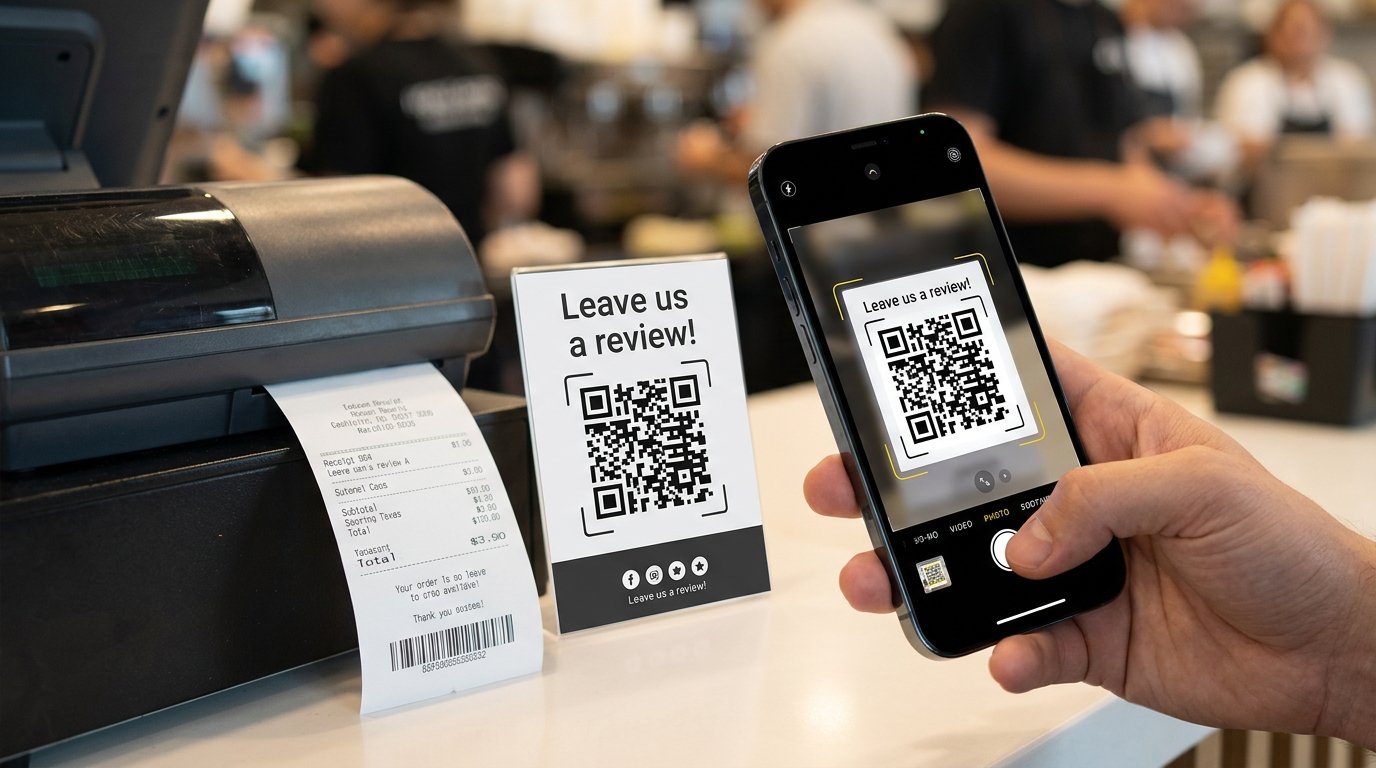
Image suggestion: a smartphone scanning a QR code on a restaurant receipt, with a Google review star rating visible on the screen — alt text: "qr code for google reviews"
Benefits of Using a QR Code for Google Reviews
A review QR code is a small addition that can have an outsized impact on how your business looks online.
- More reviews, with less effort. Removing the search step dramatically increases the number of customers who actually follow through after being asked.
- Stronger local search visibility. Review count and recency are factors in how businesses rank in Google Maps and local search results, so a steady stream of new reviews helps your visibility over time.
- Builds trust before someone walks in. Prospective customers often check reviews before visiting, and an active, recent review history signals a business that's engaged and well-regarded.
- Works everywhere. The same code can appear on receipts, table tents, packaging, business cards, email signatures, or a sign near the checkout counter.
- Removes the "I'll do it later" excuse. When the form is one scan away, customers are far more likely to leave feedback in the moment rather than forgetting once they get home.
How to Create a QR Code for Google Reviews
Creating a review QR code takes just a few minutes once you know where to find your review link.
Step 1: Find Your Google Review Link
Open your Google Business Profile and look for the "Get more reviews" or "Share review form" option — Google generates a direct review link for your listing automatically. If you can't find this option, you can also search for your business on Google Maps, click "Share," and copy the link, then add &action=write or use a Place ID-based review link generator to ensure it opens directly to the review box.
If your business has multiple locations, make sure you grab the link for the correct branch — each location has its own unique review link.
Step 2: Generate the QR Code
Paste your review link into a free QR code generator such as Toolxa's QR Code Generator. The tool converts the URL into a downloadable QR code image you can use in print or digital materials. If you'd like the option to update the destination later without reprinting the code, look into a Dynamic QR Codes Guide before generating.
Step 3: Test and Display the QR Code
Before printing multiple copies, scan the code yourself on at least one iPhone and one Android device to confirm it opens directly to the review form. Once confirmed, add it to:
- Receipts or invoices
- Table tents or counter signs
- Packaging or thank-you cards
- Email signatures and order confirmation emails
For guidance on sizing the code for different print materials, see our QR Code Size Guide.
Common Mistakes to Avoid
A review QR code is simple, but a few small errors can quietly reduce how many reviews you actually collect.
- Linking to the wrong location. Businesses with multiple branches sometimes accidentally use one location's review link across all of them, which sends customers to review the wrong place.
- Linking to your homepage instead of the review form. A code that opens your general website or Google Maps listing — without landing directly on the review box — adds extra steps and reduces completions.
- Skipping the test step. Always scan and confirm the code opens the review form correctly before printing or distributing it widely.
- Printing it too small or low-resolution. A blurry or undersized code is hard for cameras to focus on, especially on glossy receipt paper.
- Not telling customers what it's for. A bare QR code with no label leaves people guessing — a short instruction makes a big difference.
Best Practices
To get the most genuine, useful reviews from your QR code, keep these tips in mind:
- Ask everyone, not just happy customers. Presenting the code to all customers, rather than selectively to those who seem satisfied, keeps your reviews authentic and in line with Google's review policies.
- Add a simple, friendly prompt. A line like "Enjoyed your visit? Scan to leave us a review!" gives the code context and encourages action.
- Place it where there's a natural pause. Checkout counters, receipts, and the end of a meal are moments when customers have a few spare seconds to scan.
- Use a dynamic QR code if you manage multiple locations. This lets you update or redirect the link later without reprinting materials at every site.
- Pair it with a thank-you. A short note thanking customers for their feedback — regardless of the rating — reinforces that you value their input.
FAQs
Is a QR code for Google Reviews free to create?
Yes. Most QR code generators, including Toolxa, let you create a QR code linking to your Google review form for free, with no account required.
Can each business location have its own review QR code?
Yes, and it's recommended. Each location on Google Business Profile has its own unique review link, so generate a separate QR code for each branch to make sure feedback is attributed to the correct location.
Will customers only be able to leave positive reviews?
No. The QR code simply opens the standard Google review form, where customers choose their own star rating and write their own comment. Businesses cannot filter or restrict reviews based on sentiment, and attempting to do so (sometimes called "review gating") goes against Google's policies.
Does scanning the code post a review automatically?
No. Scanning the code only opens the review form — the customer still chooses a rating, writes their comment (if any), and submits it themselves.
Do Google Reviews QR codes expire?
No, a QR code linking to your review form doesn't expire on its own. A static code will only stop working correctly if your business listing is merged, removed, or if the link format it points to becomes outdated — using a dynamic QR code makes it easy to update the destination if that ever happens.
Final Thoughts
A QR code for Google Reviews turns a request that often gets forgotten into something a customer can complete in seconds, right when their experience is freshest. Placed thoughtfully — on a receipt, table card, or near the checkout — it's one of the simplest ways to build a steady stream of genuine reviews and strengthen your presence on Google.
Ready to create yours? Use Toolxa's free QR code generator to turn your Google review link into a custom, downloadable QR code in seconds — no sign-up required.